Working with images
PDFs embed images as binary stream objects within the PDF’s data stream. The stream object’s dictionary describes properties of the image such as its dimensions and color space. The same image may be drawn multiple times on multiple pages, at different scales and positions.
In some cases such as JPEG2000, the standard file format of the image is used verbatim, even when the file format contains headers and information that is repeated in the stream dictionary. In other cases such as for PNG-style encoding, the image file format is not used directly.
pikepdf currently has no facility to embed new images into PDFs. We recommend img2pdf instead, because it does the job so well. pikepdf instead allows for image inspection and lossless/transcode free (where possible) “pdf2img”.
pikepdf also cannot extract vector images, that is images produced through a combination of PDF drawing commands. These are produced by a content stream, or sometimes a Form XObject. Unfortunately there may not be anything in the PDF that indicates a particular sequence of operations produces an image, and that sequence is not necessarily all in the same place. To extract a vector image, use a PDF viewer/editor to crop to that image.
Finding the images on a page
Use pikepdf.Page.get_images() to enumerate the images a page draws. It
returns a mapping of resource name to image object:
>>> page = pdf.pages[0]

>>> images = page.get_images()  # {'/Im0': <stream>, ...}
By default get_images() recurses into form XObjects. A form XObject is a
reusable bundle of PDF drawing operations – not to be confused with an
interactive form – and a page very commonly draws its entire visible content
through one or more of them. An image nested two or three form XObjects deep is
still, visually, an image on the page, so get_images() finds it. Pass
recursive=False to report only images referenced directly by the page’s own
resources.
Warning
The older pikepdf.Page.images property is deprecated as of pikepdf
10.9. It reports only images referenced directly by the page and silently
omits any image drawn through a form XObject. Because it is not visually obvious
when a page’s content is wrapped in a form XObject, page.images could make a
page that clearly displays images appear to “have no images” at all. Use
page.get_images() instead (or page.get_images(recursive=False) for the old,
non-recursive behavior).
If two images in different XObject scopes happen to share the same resource name
(for example both are called /Im0 in their own scope), only one of them appears
in the merged mapping that get_images() returns. This is a consequence of
returning a single name-keyed mapping; the underlying objects are still distinct.
Playing with images
pikepdf provides a helper class PdfImage for manipulating
images in a PDF. The helper class helps manage the complexity of the image
dictionaries.
>>> from pikepdf import Pdf, PdfImage, Name

>>> example = Pdf.open('../tests/resources/congress.pdf')

>>> page1 = example.pages[0]

>>> list(page1.get_images().keys())
['/Im0']

>>> rawimage = page1.get_images()['/Im0']  # The raw object/dictionary

>>> pdfimage = PdfImage(rawimage)

>>> type(pdfimage)
<class 'pikepdf.models.image.PdfImage'>
In Jupyter (or IPython with a suitable backend) the image will be displayed.
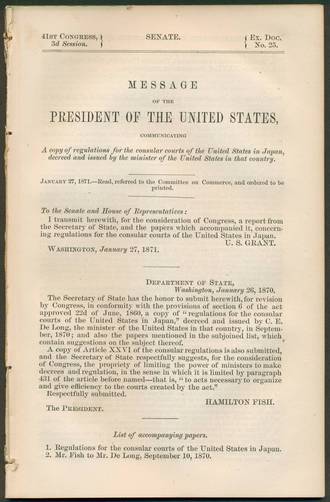
You can also inspect the properties of the image. The parameters are similar to Pillow’s.
>>> pdfimage.colorspace
'/DeviceRGB'

>>> pdfimage.width, pdfimage.height
(1000, 1520)
Note
.width and .height are the resolution of the image in pixels, not
the size of the image in page coordinates. The size of the image in page
coordinates is determined by the content stream.
Extracting images
Extracting images is straightforward. extract_to() will
extract images to a specified file prefix. The extension is determined while
extracting and appended to the filename. Where possible, extract_to
writes compressed data directly to the stream without transcoding. (Transcoding
lossy formats like JPEG can reduce their quality.)
>>> pdfimage.extract_to(fileprefix='image')
'image.jpg'
It also possible to extract to a writable Python stream using
.extract_to(stream=...`).
You can also retrieve the image as a Pillow image (this will transcode):
>>> type(pdfimage.as_pil_image())
<class 'PIL.JpegImagePlugin.JpegImageFile'>
Another way to view the image is using Pillow’s Image.show() method.
Not all image types can be extracted. Also, some PDFs describe an image with a mask, with transparency effects. pikepdf can only extract the images themselves, not rasterize them exactly as they would appear in a PDF viewer. In the vast majority of cases, however, the image can be extracted as it appears.
Limiting image size (decompression bombs)
A hostile PDF can declare an image with enormous /Width and /Height while
storing almost no actual image data, so that decoding it would allocate a huge
amount of memory – a decompression bomb denial-of-service. To guard against
this, image decoding (as_pil_image, extract_to, and the Jupyter preview)
enforces a limit on the number of pixels in a single image, analogous to
Pillow’s PIL.Image.MAX_IMAGE_PIXELS.
- pikepdf.PdfImage.MAX_IMAGE_PIXELS
The maximum number of pixels (
width * height) pikepdf will decode from a single image. An image larger than twice this value raisespikepdf.DecompressionBombError; an image larger than this value emitspikepdf.DecompressionBombWarning. Set toNoneto disable the check.Until it is assigned, it defaults to
max(500_000_000, PIL.Image.MAX_IMAGE_PIXELS)– Pillow’s default is often too low for legitimate high-DPI scanned PDFs (large blueprints, maps, etc.). Once assigned, the value is independent of Pillow’s setting. It is a global setting shared by all image objects.
# Allow larger images for a batch of trusted, high-resolution scans
pikepdf.PdfImage.MAX_IMAGE_PIXELS = 2_000_000_000

# Or disable the check entirely (not recommended for untrusted input)
pikepdf.PdfImage.MAX_IMAGE_PIXELS = None
Because pikepdf’s exception types subclass Pillow’s, code that already handles
PIL.Image.DecompressionBombError will catch pikepdf’s too.
Stored bytes are not the presentation image
The raw bytes stored in an image stream are not, on their own, the picture a
viewer displays. The stream dictionary carries extra parameters that tell a
viewer how to interpret those bytes – the color space, bit depth, and in
particular the /Decode array. Two images with byte-for-byte identical sample
data can present as entirely different pictures depending on these parameters.
The /Decode array remaps each stored sample value to a value in the color
space before rendering. The most familiar case is [1, 0] on a grayscale image,
which inverts it: stored 0 presents as white and stored 255 as black. A
viewer applies /Decode; so, by default, does pikepdf when you extract an image.
pikepdf.PdfImage.as_pil_image() and pikepdf.PdfImage.extract_to()
apply /Decode as a linear per-channel mapping for grayscale, RGB and CMYK
raster images, so the extracted image matches what a viewer renders.
If you instead want the raw stored sample values with the least processing –
for forensic inspection of the underlying data, say – pass
apply_decode_array=False:
>>> raw = pdfimage.as_pil_image(apply_decode_array=False)  # stored samples, /Decode ignored

>>> shown = pdfimage.as_pil_image()  # default: matches a PDF viewer
A couple of image types are intentionally unaffected by this parameter, because
applying /Decode ourselves would be wrong:
Indexed (palette) color spaces, where
/Decoderemaps palette indices rather than colors. pikepdf does not reinterpret these and emits a warning if a non-identity/Decodeis present.DCT (JPEG) and JPX (JPEG 2000) images, whose codecs carry their own color semantics – such as the Adobe
APP14marker that signals inverted CMYK – which Pillow already honors. Re-applying/Decodewould double-invert them.
The takeaway: an extracted image’s bytes reflect a choice about how much
interpretation to apply. The default reproduces the presentation; pass
apply_decode_array=False only when you specifically want the stored data.
Data first, rendering second
That choice reflects pikepdf’s general philosophy: hand you image data with the
least interpretation necessary, not a rendered picture. Wherever it can,
extract_to() copies the stored, already-compressed stream
out verbatim – a stored JPEG becomes a .jpg, a CCITT fax becomes a .tif, a
JPEG 2000 codestream becomes a .jp2 – so nothing is recompressed, no quality
is lost, and the codec’s own colour semantics are preserved. This is a lossless,
transcode-free “pdf2img”.
pikepdf is not a renderer: it does not composite transparency groups, rasterize vector drawing, or resolve every colour space to screen RGB. When you want exactly what a viewer displays, use one of the renderers listed on the home page.
When pikepdf must transcode
Some images cannot be copied out as a standalone file and must be decoded to pixels and re-encoded (as PNG or TIFF). Transcoding a lossy format re-encodes it, and in every case it gives up the verbatim-bytes guarantee. pikepdf transcodes when:
a non-identity
/Decodearray must be applied to a JPEG/JPEG 2000 (the codec is decoded so the remap can be baked into the output);a soft mask (
/SMask) or explicit/colour-key/Maskis composited into an alpha channel, which needs a transparency-capable container (PNG);a JPEG declares a non-default
/ColorTransform(a YCCK CMYK or non-YCbCr RGB JPEG) and so cannot be written as a plain.jpg; Pillow decodes it, honouring the JPEG’s own markers;a
/Labimage is mapped into Pillow’sLABrepresentation;a 16-bit RGB or CMYK image is reduced to 8 bits (Pillow has no 48/64-bit mode; 16-bit grayscale is preserved losslessly);
simple filters (Flate, LZW, ASCII85/Hex, RunLength) wrap a terminal image codec – the simple filters are stripped, leaving the codec to extract.
Features that are not available
A few things cannot be produced at all, by design or by the nature of the data:
Two terminal image codecs in one filter chain (for example
[/DCTDecode /CCITTFaxDecode]). Each terminal codec produces final image samples, so they cannot be stacked; such a chain cannot be decoded by any reader and raisesUnsupportedImageTypeError./Separationand/DeviceN(and other high-fidelity printing) colour spaces are not transcoded; extracting one raisesHifiPrintImageNotTranscodableError. These describe ink mixtures with no faithful RGB representation absent the document’s output-intent profile.Calibrated and
/Labcolour spaces are decoded as their device equivalents. For/CalRGBand/CalGray, pikepdf synthesizes an ICC profile from the calibration parameters and attaches it to the extracted image, so the colour intent survives for consumers that honour embedded profiles.Inline image named colour spaces resolve only when the image is obtained through
pikepdf.parse_content_stream()on the page (or form XObject) whose/Resourcesdefine the name; a barePdfInlineImageconstructed without that context cannot resolve a named space.
What looks like one image may be many
It is tempting to assume that one thing you see on a page corresponds to one
image object you can pull out and edit. PDF offers no such guarantee. Accessing
“the image” on a page is like an HTML parser scanning for the first
<img src=""> tag it finds – a lot more could be happening.
A page that looks like it shows a single picture may in fact be composited from many pieces:
Multiple image objects tiled or layered together – a scanner might split one physical page into several stripes, or a designer might stack a photo, a logo, and a background as separate images.
Image masks, soft masks (
/SMask), and transparency groups that combine a base image with one or more masks to produce the final appearance. The colors you see are the result of compositing, not the contents of any single stream.Vector drawing – lines, fills, and shadings produced by content-stream operators rather than stored as a raster image at all (see the note on vector images above).
Form XObjects that group images and drawing operations into a reusable unit drawn as a whole, possibly several times.
So when you set out to “extract the image” from a page, be prepared to discover that the reality is more complex than a single JPEG. pikepdf can hand you the individual image streams; it does not rasterize or composite them into the single picture a viewer renders. For that you need a renderer such as those listed on the home page.
One image, many appearances
The reverse situation is just as common: a single image object can be drawn multiple times – on the same page at different positions and scales, or across many pages of the document. Each placement is just a reference; the pixel data lives in one stream.
This has a direct consequence for editing. Because the content stream controls where and at what size an image is drawn, replacing one image stream changes every place that stream is drawn. Conversely, if a document has several visually identical images that are actually separate objects (common when a file was assembled from multiple sources), editing one will not touch the others. If you need to change exactly one occurrence, you must first determine whether the occurrences share an object or not – two placements of the same object cannot be edited independently without first duplicating the object.
Replacing an image
In this example we extract an image and replace it with a grayscale equivalent.
>>> import zlib

>>> rawimage = pdfimage.obj

>>> pillowimage = pdfimage.as_pil_image()

>>> grayscale = pillowimage.convert('L')

>>> grayscale = grayscale.resize((32, 32))

>>> rawimage.write(zlib.compress(grayscale.tobytes()), filter=Name("/FlateDecode"))

>>> rawimage.ColorSpace = Name("/DeviceGray")

>>> rawimage.Width, rawimage.Height = 32, 32
Notes on this example:
It is generally possible to use
zlib.compress()to generate compressed image data, although this is not as efficient as using a program that knows it is preparing a PDF. This works only when the filter is set to FlateDecode. You cannot use most other compression algorithms, since in general they are not supported in PDF.In general we can resize an image to any scale. The PDF content stream specifies where to draw an image and at what scale.
This example would replace all occurrences of the image if it were used multiple times in a PDF.
Removing an image
The easy way to remove an image is to replace it with a 1x1 pixel transparent image.
A transparent image can be created by setting the /ImageMask to true.
Note that, if an image is referenced on multiple pages, this procedure only updates the occurrence on one page. If all references to the image are deleted, it should not be included in the output file.
>>> pdf = pikepdf.open('../tests/resources/sandwich.pdf')

>>> page = pdf.pages[0]

>>> image_name, image = next(iter(page.get_images().items()))

>>> new_image = pdf.make_stream(b'\xff')

>>> new_image.Width, new_image.Height = 1, 1

>>> new_image.BitsPerComponent = 1

>>> new_image.ImageMask = True

>>> new_image.Decode = [0, 1]

>>> page.Resources.XObject[image_name] = new_image